Profile and team
The Profile and team section in the MeerPartners business cabinet: company details, Tenant ID, contact email and website, team members and the Owner and Member roles.
The Profile and team section (/m/profile) stores your company details and manages the team composition. Here you can see who has access to the cabinet and with what permissions, and the owner can invite new members via a link.
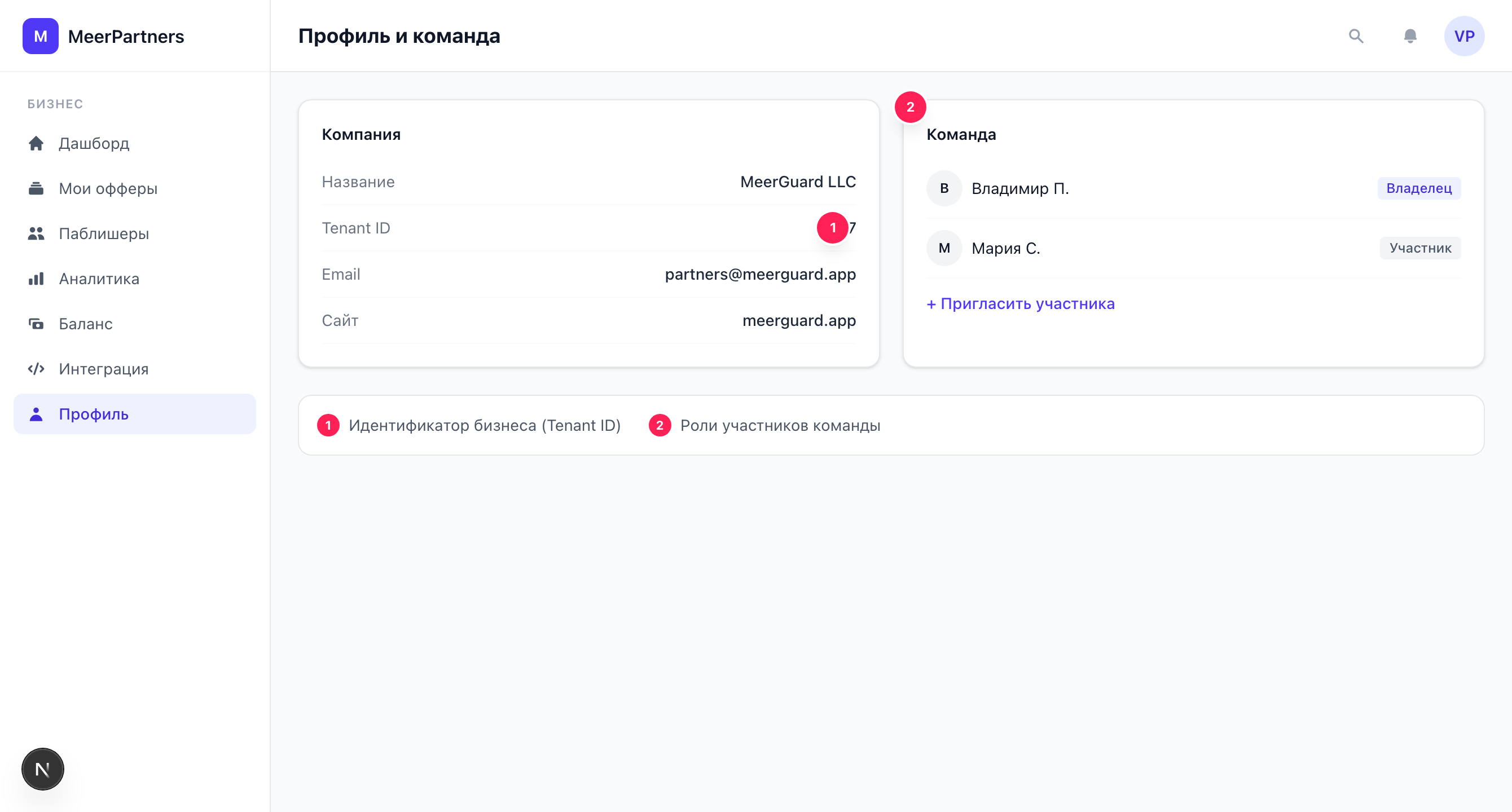
Company details
The "Company" block shows the basic information:
| Field | What it is |
|---|---|
| Company | The company name (company_name). Edited by the owner. |
| Account email | The email of your MeerID account you signed in with. |
| Contact email | The business contact email for communication (if set). |
| Website | The company website address (if set). |
| Tenant ID | The numeric identifier of your business (tenant) on the platform. |
What a Tenant and Tenant ID are
A Tenant is your isolated business account on the platform: offers, balance, team and keys all belong to it. The Tenant ID is its numeric identifier; it is used in integration (the X-Tenant-Id header when sending a postback). The business URL identifier (slug) is the one you set at registration — it determines the address of your space. More on business registration — Choosing a role.
Editing
The "Edit" button opens a form for changing the company name. After saving, the notification "Profile updated" appears. Only the Owner can change the profile.
Profile edits — owner only
If there is no "Edit" button, it means you signed in as a Member (merchant_member) — you have read-only access. Only the business owner can change the company details.
Team members and roles
The "Team members" block is a table of everyone with access to the cabinet: Member (name), Email, Role.
| Role | Code | What they can do |
|---|---|---|
| Owner | merchant_owner | Full access: creating and editing offers, API keys, deposit and balance, profile, inviting and removing members. |
| Member | merchant_member | Read-only access: sees offers, analytics and data but doesn't change them. |
What only the Owner can do
Critical actions are reserved for the Owner role and unavailable to Members:
— creating and editing offers;
— issuing and revoking API keys, test postback;
— topping up the deposit and viewing the escrow balance;
— granting/revoking publisher access to private offers;
— editing the company profile;
— inviting and removing team members.
Inviting a member
The owner invites new members with an invitation link (the "Invite member" button). The invitee joins the team in the Member role.
Open the invitation dialog
Click "Invite member".
Choose the link mode
Three modes are available: One-time (1 use), Multi-use with a limit (specify the maximum number of uses) or Unlimited.
Set the expiration
Specify the link's validity period in days — from 1 to 90.
Create and copy the link
Click "Create". The platform shows a link of the form /join/<token> — copy it with the "Copy" button and send it to the person.
The member accepts the invitation
By following the link and signing in via MeerID, the person accepts the invitation and joins your team.
Invitation list
Below the members, the owner sees the "Invitation links" table: Token (click copies the link), Status, Uses (used / limit, unlimited is shown as ∞), Expires. Invitation statuses:
| Status | What it means |
|---|---|
| Active | The link works and can be used to join. |
| Expired | The validity period has passed. |
| Revoked | The owner revoked the link manually. |
| Exhausted | The usage limit has been reached. |
An active link can be "Revoked" — after that it can no longer be used to join ("Invitation revoked" appears).
Removing a member
The owner can remove a team member with the "Remove" button in the table row. There is a restriction:
Who can't be removed
You can remove only a Member (merchant_member). You cannot remove:
— yourself ("You can't remove yourself");
— the team owner ("You can't remove the team owner").
A confirmation is shown before removal. After removal, "Member removed" appears.