Multiple accounts
How a single MeerID account holds an influencer and a business workspace at once: adding a second role, switching the active workspace and choosing a space.
A single MeerID account can be both an influencer and a business at the same time. It's convenient: you promote other people's offers as a partner and run your own program as a business in parallel — under one sign-in, without a second registration.
One MeerID — two workspaces
After signing in via MeerID, the platform knows which roles you have. If both are active, you have both an influencer workspace (/i) and a business workspace (/m), and you switch between them without signing in again.
One role first
On your first sign-in you choose one role. You can add the second one whenever you like — see below.
How to add a second role
The second role is added right from the profile menu in the workspace header (the avatar with your name in the top-right corner).
Open the profile menu
Click the avatar in the header — a menu with the "Accounts" section opens.
Choose the missing role
If you don't have an affiliate workspace yet, there will be a "Become an influencer" item. If you don't have a business — "Open a business account".
Confirm in the modal
The add-account window opens. For an influencer — the "Become a partner" button (one click). For a business — a short form (name, slug, currency). On success, the platform moves you to the new workspace itself.
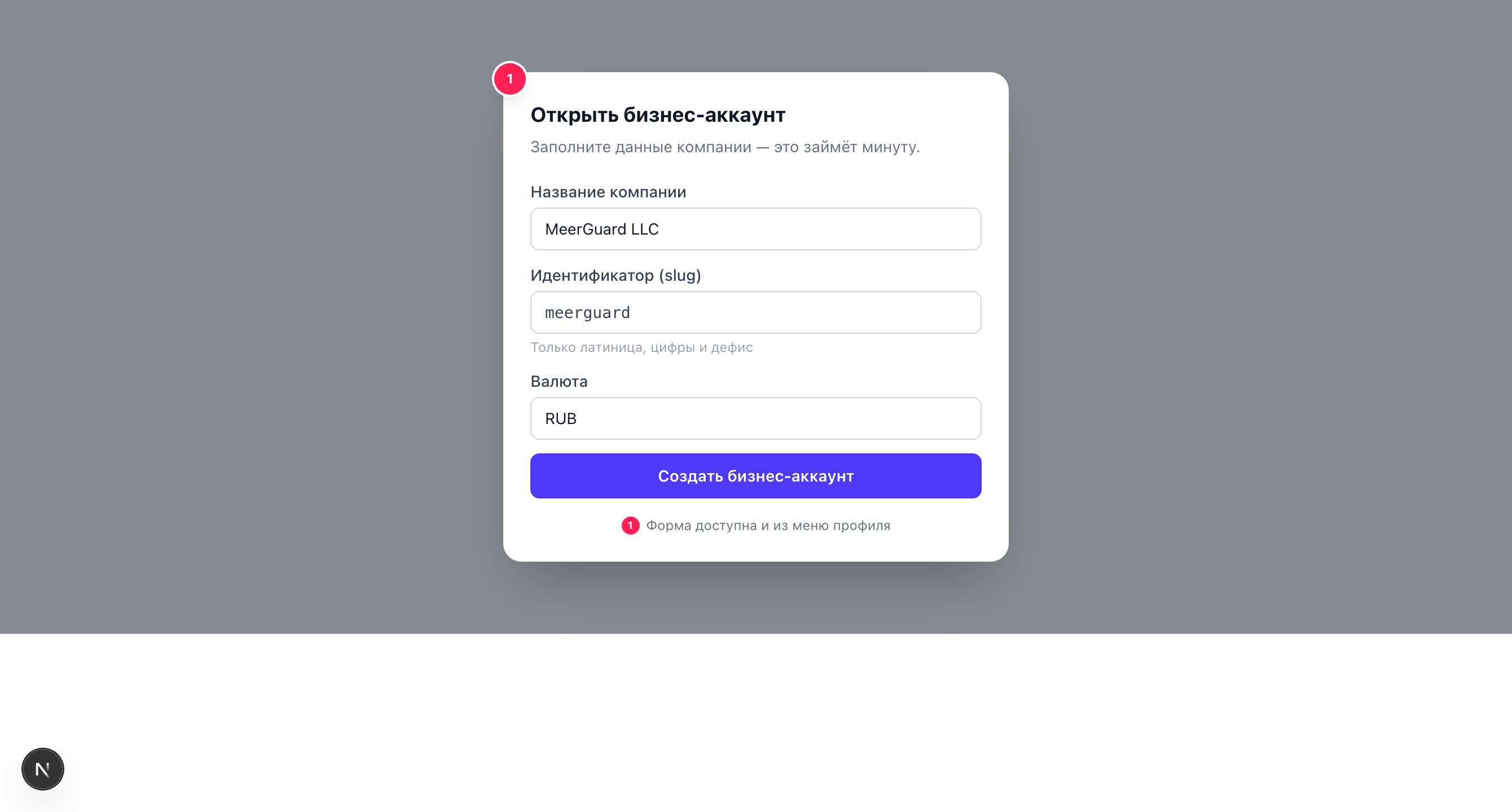
The forms are the same as at registration
The add window uses the same fields and rules as the initial role selection. Details on the business fields (company_name, tenant_slug, default_currency) and influencer activation are in Choosing a role.
Switching the active workspace
When you have both roles, the "Accounts" section in the profile menu shows both workspaces:
- Influencer — goes to
/i. - Business — goes to
/m.
The active workspace is marked with a checkmark. To change the space, choose the other item — the platform moves you to the corresponding workspace.
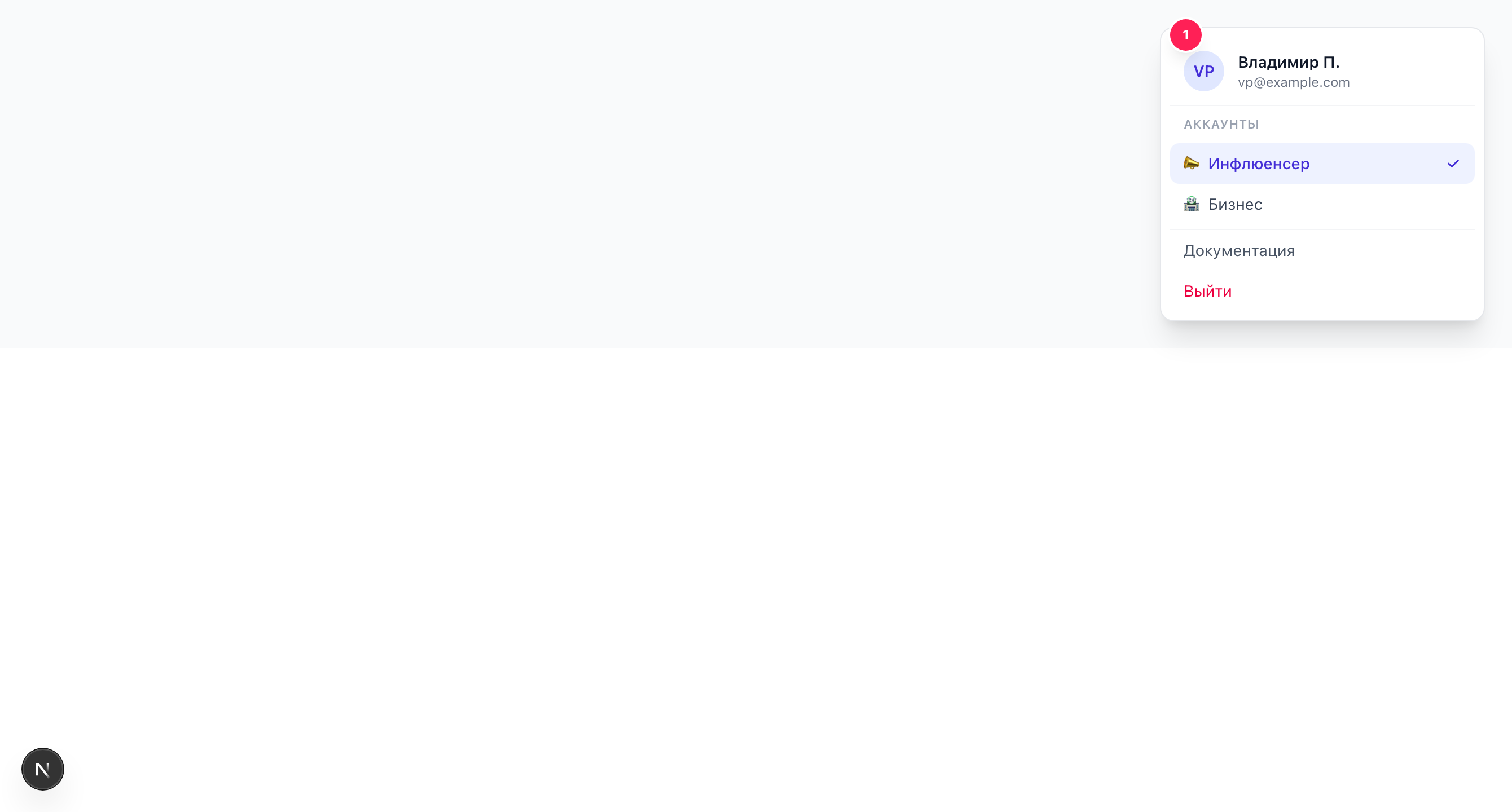
The workspace selection page
If you have both roles, on sign-in a separate "Choose a workspace" screen (/auth/switch) may open — with "Influencer" and "Business" cards. Choose the card you need to land in the corresponding workspace.
How the selection screen differs from the profile menu
The /auth/switch screen shows only the workspaces you already have — it just picks where to sign in. You can set up a new role through the profile menu (the "Become an influencer" / "Open a business account" items).