Sign-up and sign-in via MeerID
How to sign in to MeerPartners with a single MeerID account: one-button passwordless sign-in, sign-in methods in the MeerID window, and choosing a role.
Sign-in to MeerPartners is done via MeerID — the ecosystem's single account. The platform has no registration of its own with email and password: you authenticate once through MeerID and land in your workspace.
What is MeerID
MeerID is the single sign-in service (SSO) for all products in the ecosystem. It confirms who you are and grants MeerPartners permission to create a session. A single MeerID account can hold both an influencer workspace and a business workspace at the same time — with no repeated sign-in between them.
Why there are no passwords
MeerPartners doesn't store or verify passwords — MeerID does that. It's more secure: fewer places where credentials could leak, and a single point for managing sign-in. More on session protection: Security and sessions.
What sign-in looks like
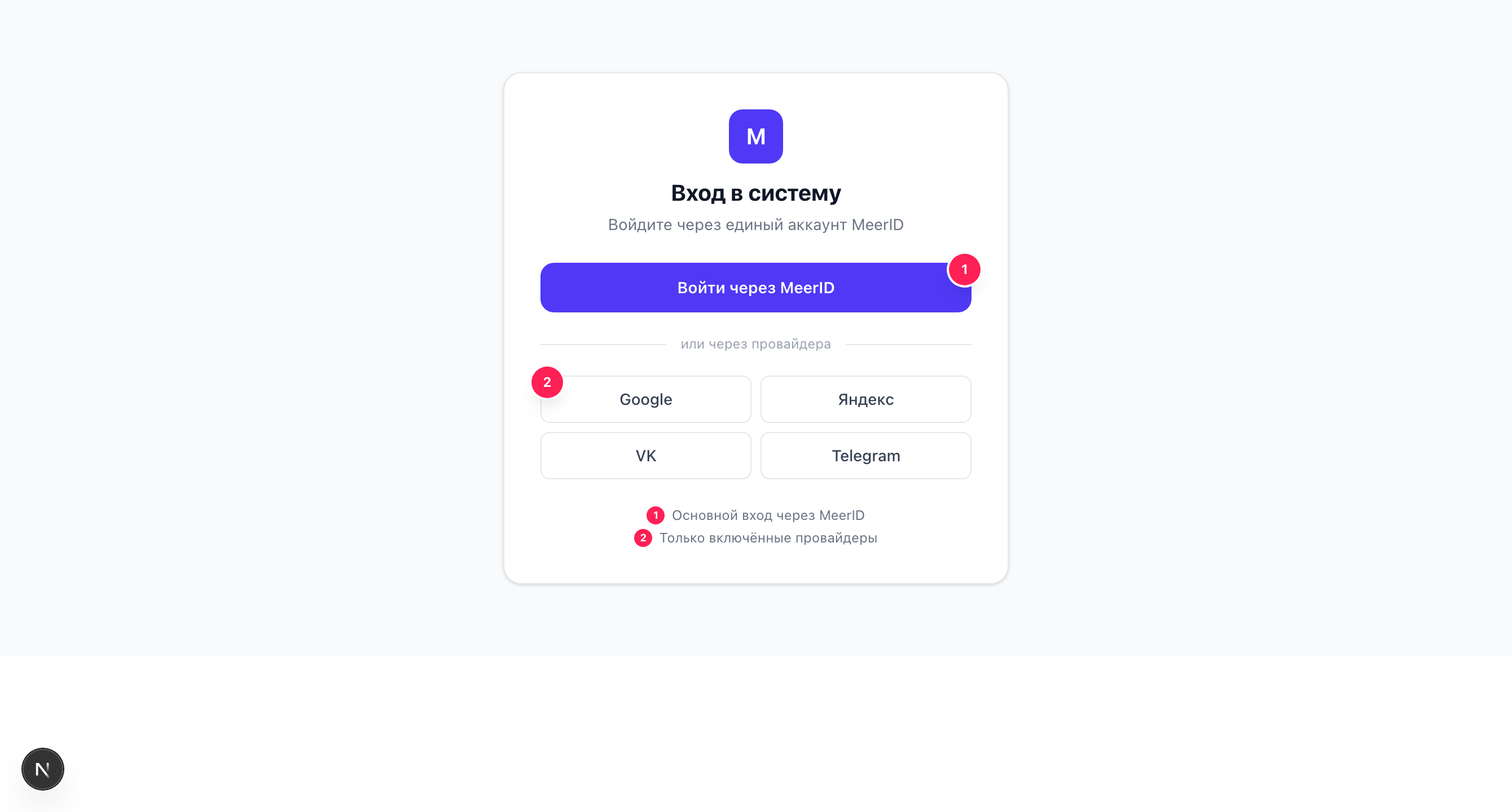
The sign-in page has a single button — "Sign in with MeerID". Clicking it opens the MeerID window, where you choose how to sign in: email, Telegram, Yandex, VK, passkey and others. MeerID shows only the methods enabled for MeerPartners, so the list is always up to date.
How sign-in works technically
Clicking the button starts sign-in via MeerID in one of these modes: FedCM (the browser's native account picker), a pop-up, or a redirect (the fallback if pop-ups are blocked). After identity is confirmed, the browser returns to MeerPartners, and the BFF layer creates a session.
What happens after the first sign-in
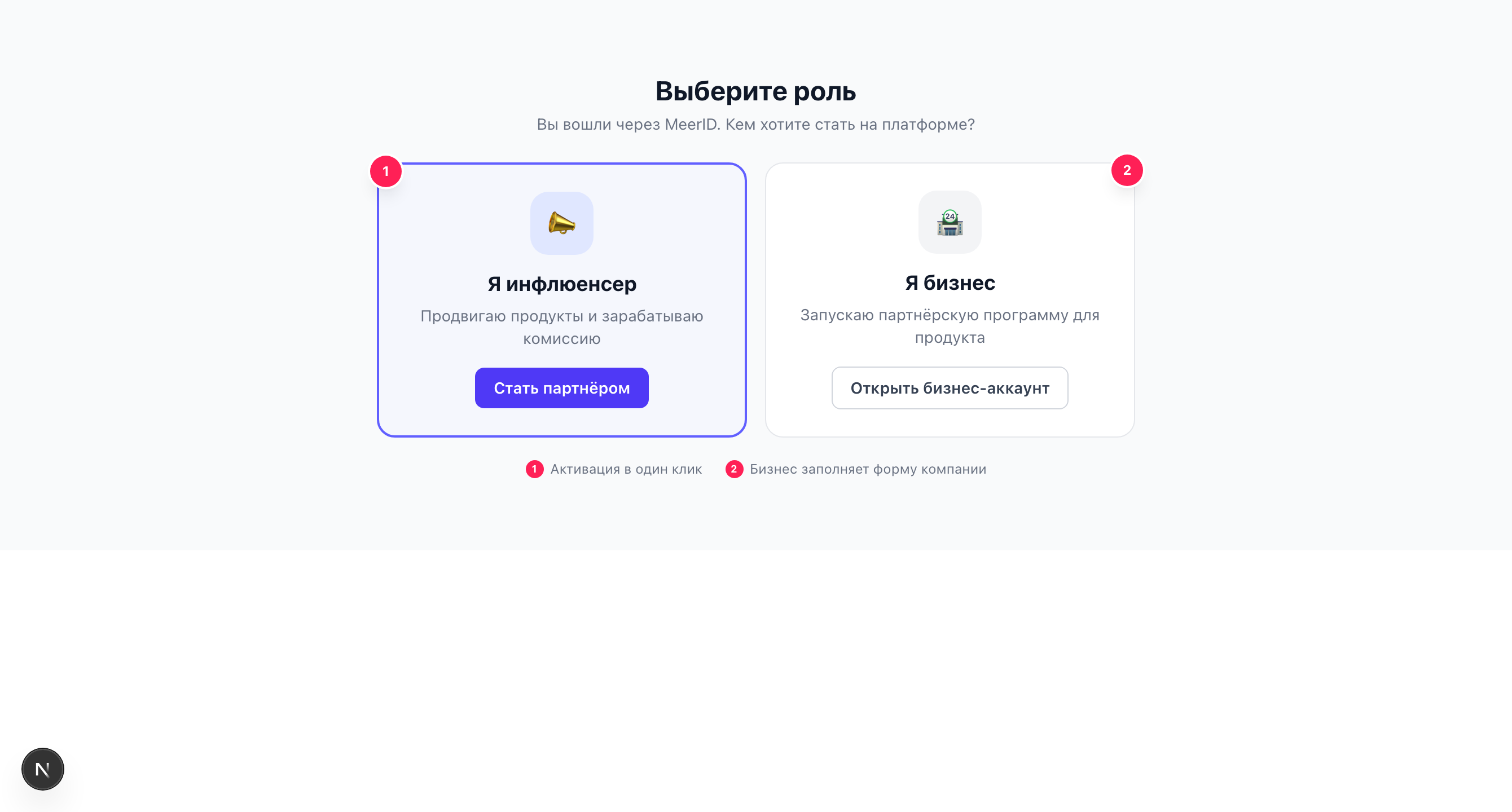
On the very first sign-in you don't have a role yet, so the role selection screen opens: "I'm an influencer" or "I'm a business".
Influencer
Click "Become a partner" — the affiliate workspace activates in one click, with no form. Learn more: Choosing a role.
Business
Fill out a short form (company name, slug, currency) and click to create. The fields and constraints are in Choosing a role.
On subsequent sign-ins this screen isn't needed: you land straight in your workspace, and if you have both roles — on the workspace selection screen.
Frequently asked questions
Where do I choose Google, Telegram or email sign-in?
In the MeerID window that opens when you click "Sign in with MeerID". The MeerPartners page has no separate buttons for sign-in methods — MeerID itself shows the ones enabled for MeerPartners.
There's no redirect after I click the sign-in button?
Check that pop-ups aren't blocked in your browser and try again. Sign-in works in FedCM, pop-up and redirect modes — when pop-ups are blocked, the redirect is used automatically. If an error occurs, it's shown on the sign-in screen.
I signed out and now I can't sign back in?
Open the sign-in page and click "Sign in with MeerID" again. After sign-out, the session on the MeerPartners side is ended; signing in again creates a new one. No separate recovery password is needed — everything goes through MeerID.
Is it safe to sign in via MeerID?
Yes. MeerPartners doesn't have your passwords — MeerID handles authentication over the OIDC protocol. Session tokens are stored in secure httpOnly cookies and are inaccessible from JavaScript. Learn more: Security and sessions.